
What Is SkyBlock, and How Does It Work as a Datapack?
SkyBlock is one of Minecraft's most popular survival challenges — you start on a tiny floating island with nothing and build up an economy from scratch. It's normally plugin-only, but the "SkyBlock - Standard" datapack brings the same experience to any regular survival world.
The datapack replaces world generation with an infinite void and a starter island at spawn (plus a matching nether island), while structures still generate as empty bounding boxes — so strongholds, portals, and loot rooms still work.
Since it changes world generation, it only works if installed before the server's first boot — add it later and you'll just get a normal world. This guide follows that order: create the server, assign the datapack, then hit Run.
Order matters: assign the datapack before the first start
SkyBlock's void world is generated once, the very first time the server boots. Create your server, upload and assign the datapack while it's still stopped, and only start it after that. If you already started a server without the datapack, create a fresh one instead of trying to fix the existing world.
Steps to Set Up a SkyBlock Server
Follow these steps in order — the datapack has to be assigned before you ever start the server.
- 1
Download the SkyBlock datapack from Modrinth
Open the SkyBlock - Standard page on Modrinth and click Download.
Important Details:
- Go to modrinth.com/datapack/standard-skyblock
- Check the Compatibility panel on the right for supported Minecraft versions
- Click the green Download button
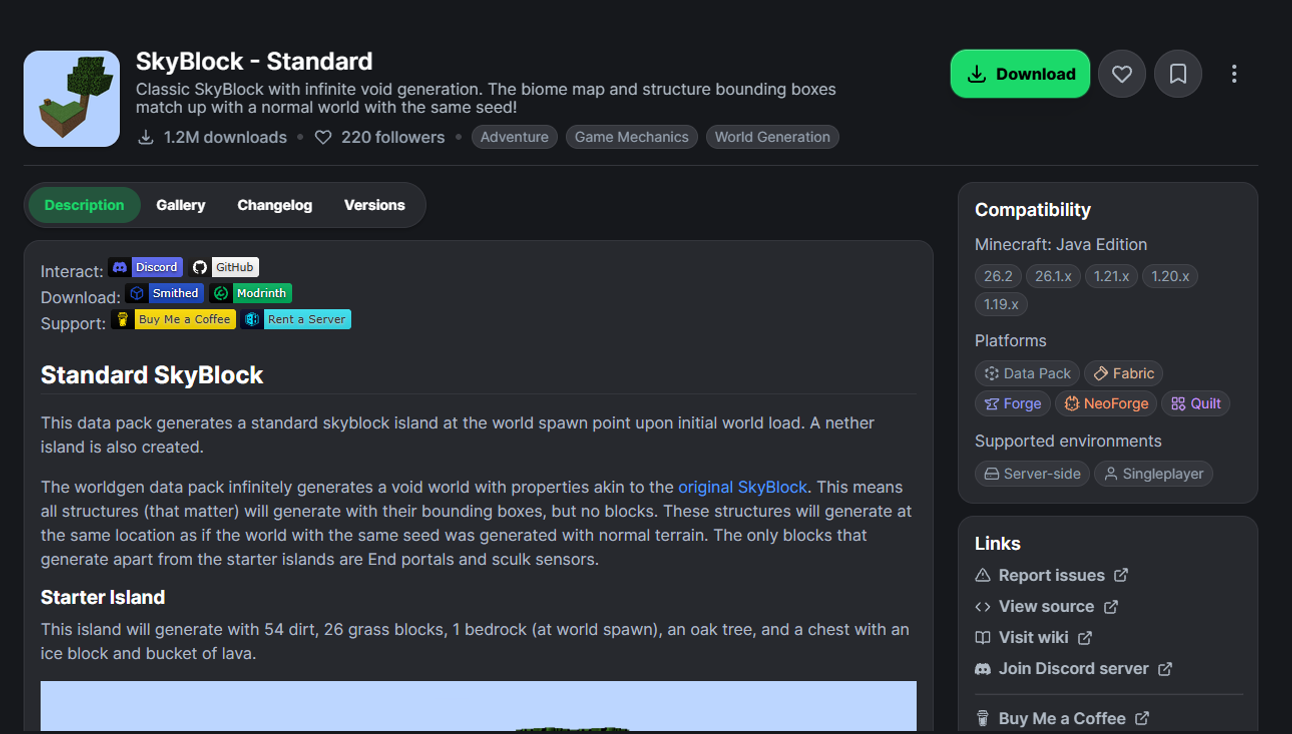 1. Download
 - 2
Pick the version that matches your server
Modrinth opens a dialog for a manual download — choose the exact Minecraft version you'll use for your Mobland server (or the closest one listed), keep the format on Data Pack, then download the .zip.
Skip "Install with Modrinth App" — that's for a local Minecraft launcher, not for uploading to Mobland. Use "Download manually" instead.Important Details:
- Open "Select game version" and pick the version your server will run
- Leave the format dropdown on Data Pack
- Click Download to save the .zip file to your computer
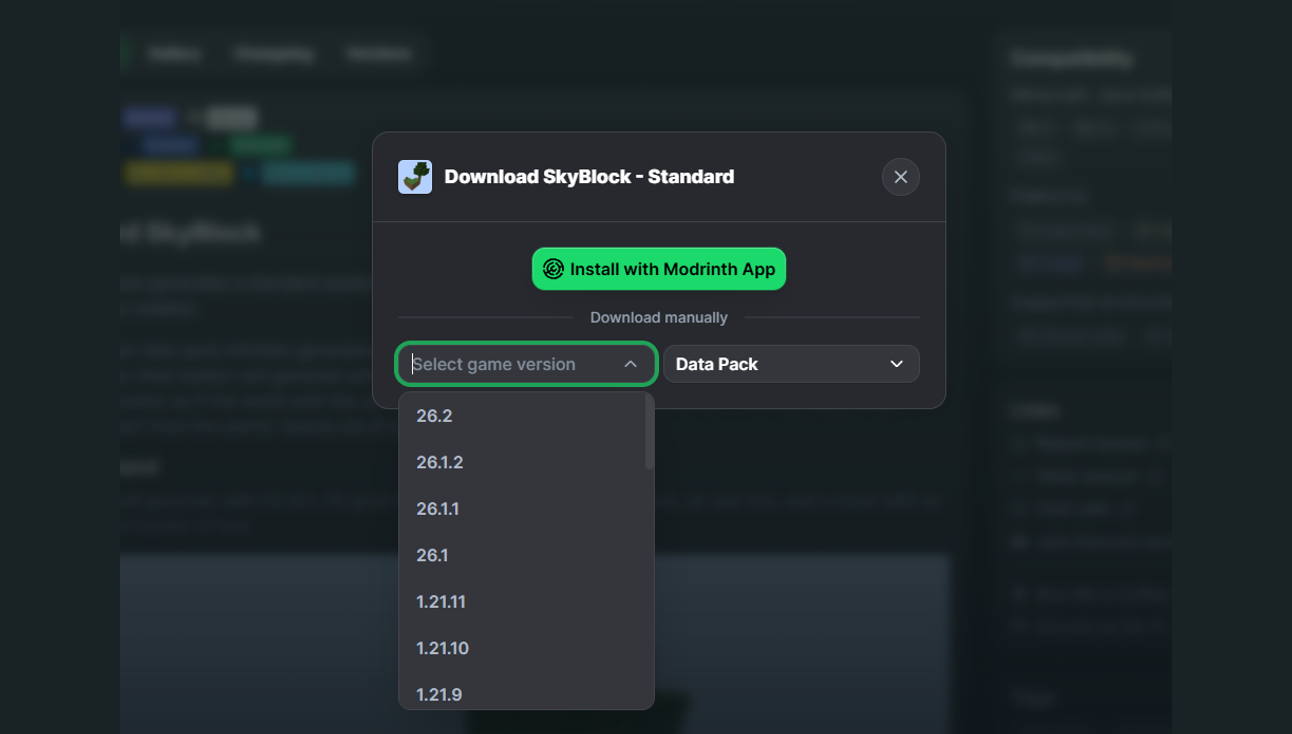 2. Select version
 - 3
Upload the .zip to your Datapack Library
In your Mobland dashboard, go to Datapacks and upload the file you just downloaded — this puts it in your library, but doesn't attach it to any server yet.
Important Details:
- From the dashboard sidebar, open Datapacks
- Click Upload Datapack and select the .zip from step 2
- Wait for the upload to finish — it now appears in your library
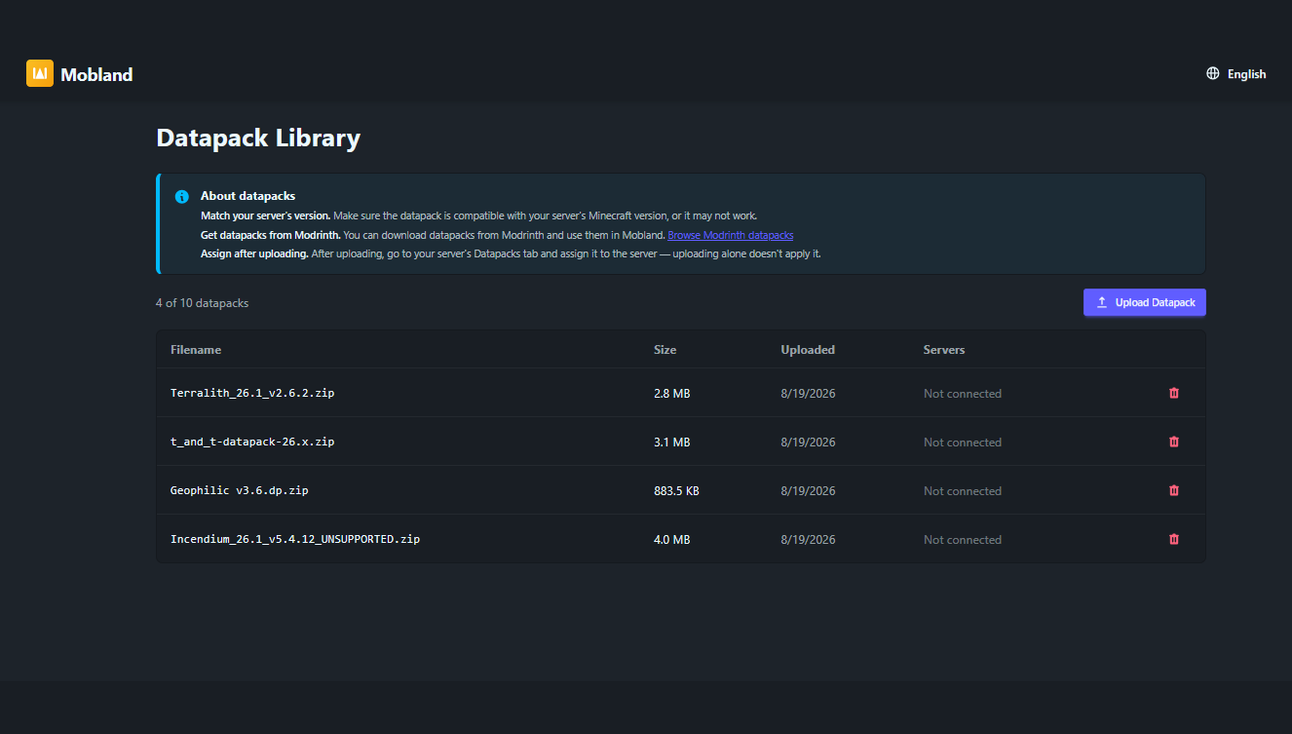 3. Upload
 - 4
Create your server — but don't start it yet
Create a new Java Edition server on the same Minecraft version as the datapack you downloaded. Vanilla, Paper, Spigot, or Purpur all work fine, and you don't need to touch the world preset. The important part: leave it stopped after creation.
Do not click Run yet. A brand-new server stays stopped until you start it — that's exactly what you want here.Important Details:
- Click Create New Server in the dashboard
- Choose Java Edition
- Select the same Minecraft version as your downloaded datapack
- Pick any server type — Vanilla, Paper, Spigot, and Purpur all support datapacks
- Click Create and wait for it to finish — it lands on the server's management page, stopped
- 5
Open the Datapacks tab and assign SkyBlock
On your new server's management page, open the Datapacks tab. Your uploaded pack shows up under "Available from library" — click Add next to it to assign it to this server.
Important Details:
- Open your server and click the Datapacks tab
- Scroll to "Your Uploads" → "Available from library"
- Click Add next to the SkyBlock zip you uploaded
- It now shows up under "Assigned to this server"
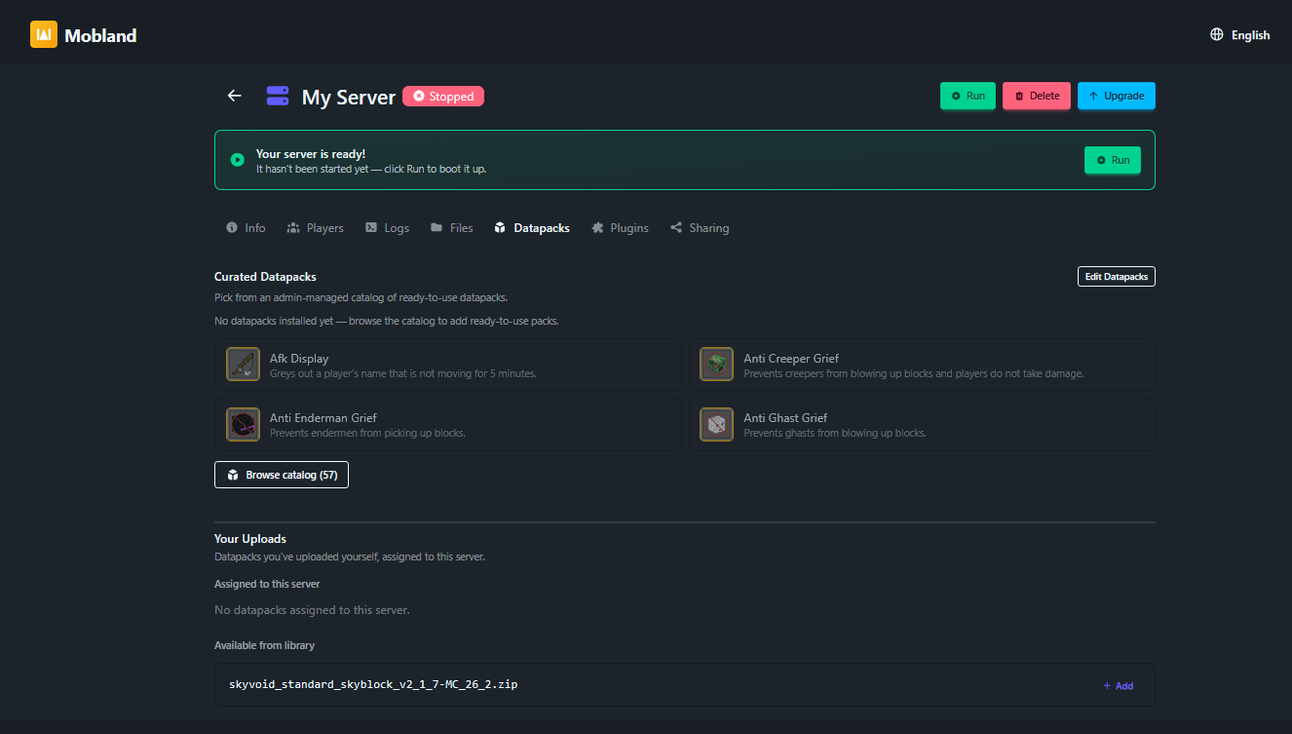 4. Assign
 - 6
Run the server and connect
With the datapack assigned and the server still stopped, click Run. SkyBlock generates its void world on this very first boot — copy the server's IP and port from the dashboard and connect from Minecraft's Multiplayer menu.
Important Details:
- Click Run on the server's management page
- Wait for the status to turn Online
- Copy the IP address and port
- In Minecraft: Multiplayer → Add Server → paste the address → Done
- Join and you'll spawn on a small floating island above the void
Important Tips and Tricks
A few things that make a SkyBlock server run smoother.
Match the version exactly
Download the datapack build for the same Minecraft version as your server. A mismatched version can fail to load or generate an incomplete world.
One shot at world generation
The void world is only created on the very first boot. If you start the server before assigning the datapack, delete it and create a fresh one rather than trying to fix the world afterward.
Combine with other datapacks
You can still assign Mobland's curated catalog (Graves, Multiplayer Sleep, and more) alongside SkyBlock — just assign everything before the first start.
Regular backups
Your SkyBlock island is archived automatically every time the server stops — download the backup anytime from the Backups page.
Playing with friends
Share your server address with friends so they can build on the same island. The free plan supports up to 4 players — upgrade for more.
Resource management
Free servers auto-stop after a few minutes without players. Your island is saved, so just restart it from the dashboard whenever you're ready to play.
Frequently Asked Questions
Answers to common questions about setting up a SkyBlock server on Mobland
What's the fastest way to run a SkyBlock server in Minecraft?
Create a new Java server, upload and assign the "SkyBlock - Standard" datapack before the first start, then hit Run — that's the exact order this guide walks through step by step.
Do I need to buy a plan to run SkyBlock?
No — uploading and assigning datapacks, including this SkyBlock pack, works on the free plan (up to 3 of your own uploaded datapacks). Paid plans raise that upload limit.
Why does the world look normal instead of a void island?
The datapack was probably added after the server's first start. SkyBlock's void generation only applies to a brand-new world — create a new server, assign the datapack while it's stopped, then start it.
Can I use this on a Bedrock Edition server?
No — datapacks are a Java Edition feature. Create a Java Edition server for SkyBlock.
Which server type should I pick — Vanilla, Paper, Spigot, or Purpur?
Any of them work with this datapack, since it only relies on vanilla data-driven world generation. Paper, Spigot, and Purpur also let you add plugins later if you want to extend SkyBlock further — turn on curated plugins on any plan, or upload your own on paid plans.
Can I add more islands or reset SkyBlock later?
The pack generates one starter island per world. To start over, create a new server and assign the datapack again before the first start — the old server and its world stay untouched until you delete it.
Does the datapack work with other mods or plugins?
Yes — it's a plain data pack, so it works alongside Mobland's curated datapacks and, on server types that support them, plugins. Just assign everything before the first start so world generation picks it all up.
How many players can play on my SkyBlock server?
Up to 4 players on the free plan, sharing the same starter island. Upgrade to a paid plan for more players.
What if I get stuck?
Join our Discord — we're happy to help with datapack or server setup issues.
Common Issues and Solutions
What to check if your SkyBlock server isn't behaving as expected.
The world generated as normal terrain, not a void island
Solution: The datapack wasn't assigned before the first start. Create a new server, upload and assign the SkyBlock datapack while it's stopped, and start it only after that.
Downloaded datapack won't upload or doesn't show in the library
Solution: Make sure you downloaded the .zip file itself (not the Modrinth page) and that it's under your plan's upload limit. Try re-downloading from Modrinth if the file seems corrupted.
"Add" button in the Datapacks tab is disabled
Solution: Datapacks can only be assigned while the server is stopped. Stop the server first, then assign the pack from the Datapacks tab.
Structures or the nether island are missing
Solution: Double-check the datapack version matches your server's Minecraft version — an incompatible build can generate an incomplete world.
Server won't start
Solution: Make sure your server hasn't auto-stopped due to inactivity — click Run again from the dashboard. If it still won't start, check the server logs or reach out on Discord.
Ready to Build Your SkyBlock Island?
Create your free Mobland server, assign the SkyBlock datapack, and you'll be floating above the void in a few minutes.
Get Started Free