
Why the Exact Version Matters
A modpack server only works if your client runs the exact same pack — and the exact same version of that pack — as the server. Plain vanilla Minecraft can't join at all, and installing the newest version of the right pack still won't connect if your server is pinned to an older one.
This guide uses SKLauncher 4.0 because its Content Hub lets you install any historical version of a pack, not just the latest — everything else follows from that one requirement.
Always use the per-version download, never the big Install button
The large Install button on a pack's page always grabs the newest version. To match your server, switch to the Versions tab and download the specific version listed on your server's Manage page.
Steps to Install the Pack
Follow these in order — the pack name and version are always on your server's Manage page.
- 1
Install SKLauncher
Download SKLauncher 4.0 from the official site only (next.skmedix.pl). The older 3.2 version has no Content Hub.
SKLauncher 4.0Official installer · next.skmedix.pl - 2
Open Content Hub and find the pack
Open Content Hub from the left sidebar and search for the pack name shown on your server's Manage page. Click the pack to open its page.
Don't use the Install button on the card — it installs the newest version.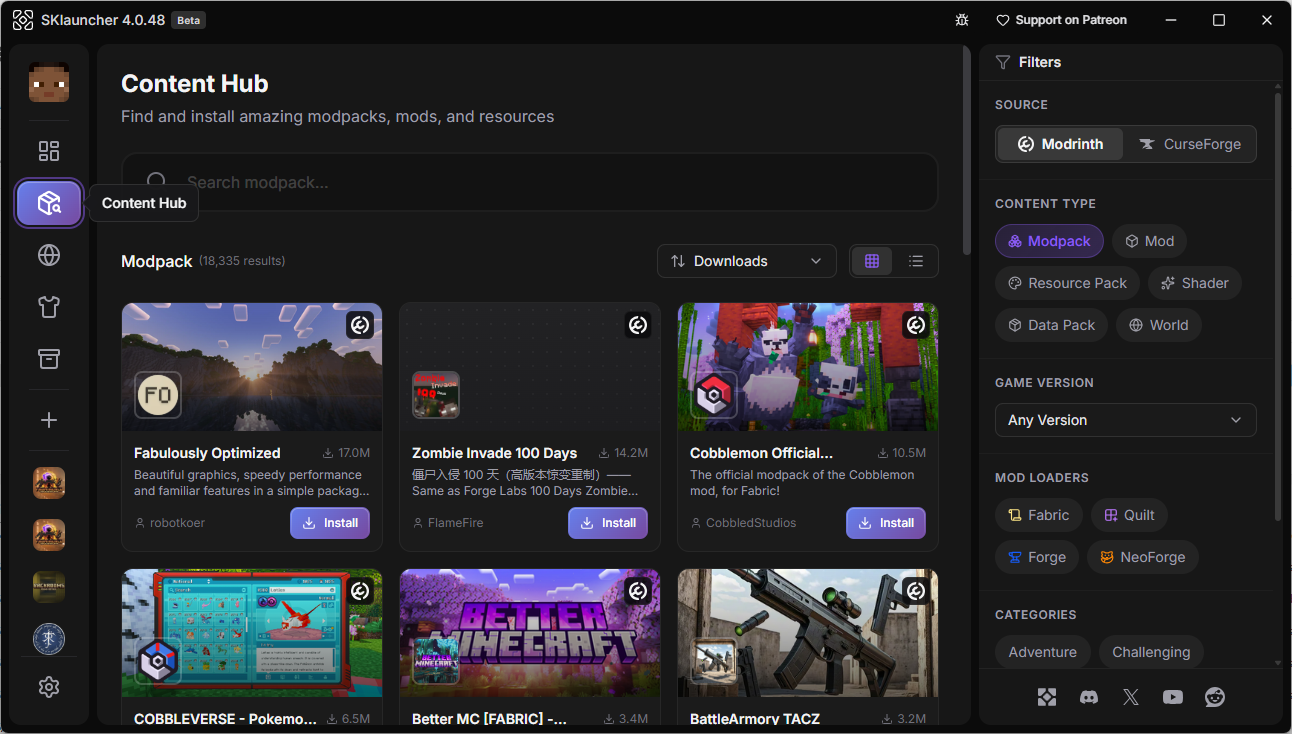 Type the pack nameOpen the pack
 - 3
Install the exact pack version
Switch to the Versions tab and find the version your server runs, then click the download icon on that row.
The large Install button at the top always installs the newest version instead.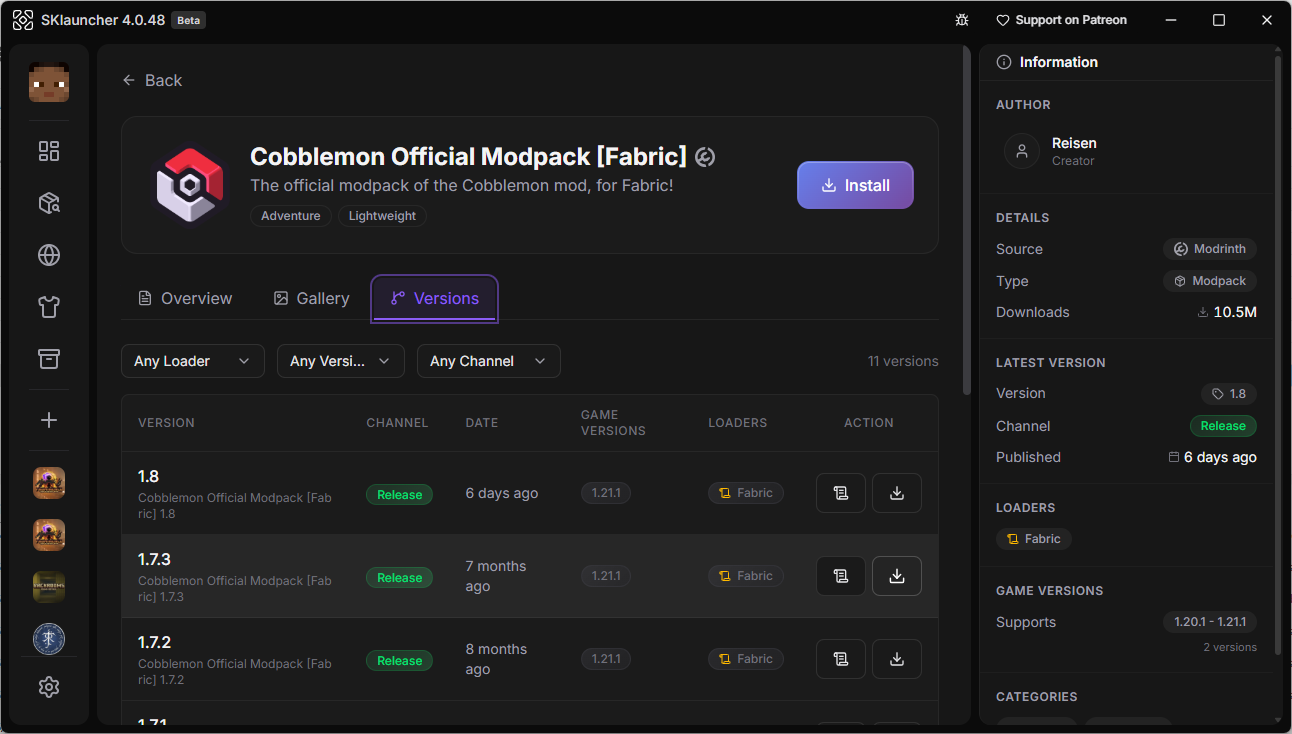 VersionsExact version
 - 4
Open the pack from Library
Once the download finishes, open Library from the sidebar. The pack shows up there as an instance — click it.
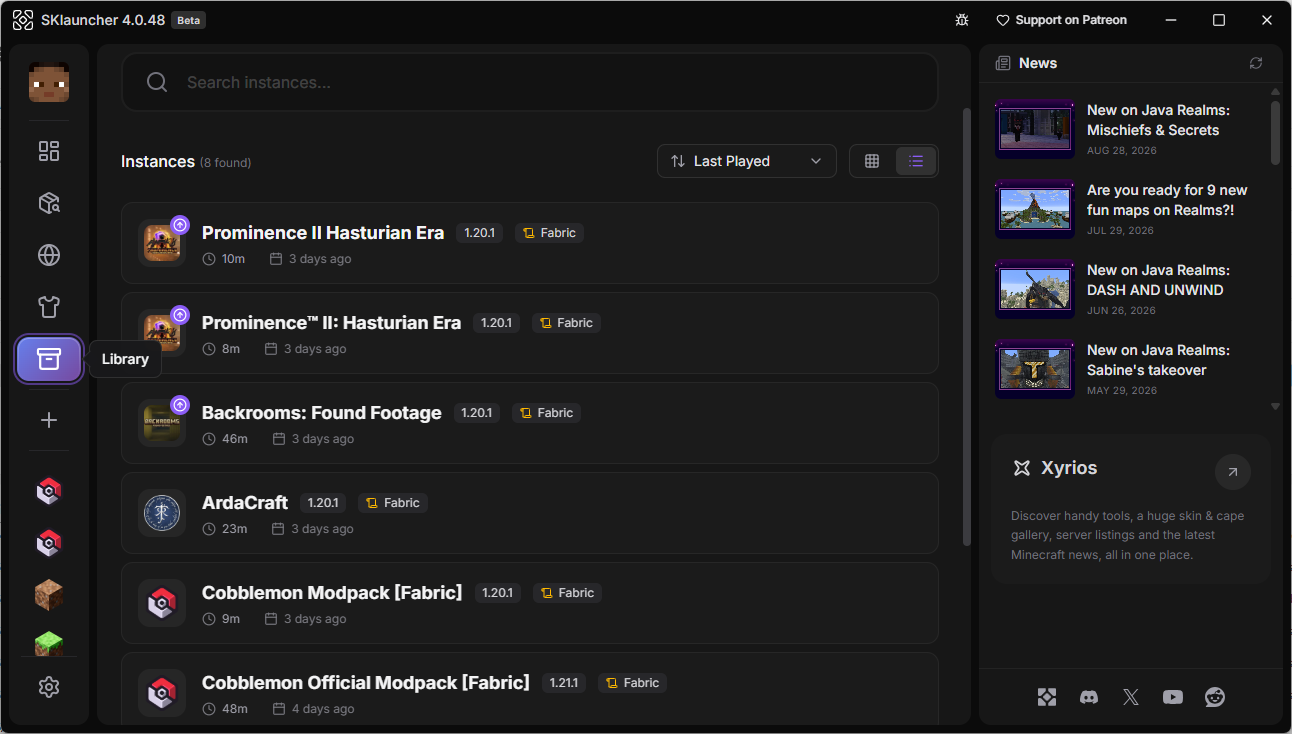 Your installed pack
 - 5
Press Play
Check that the version shown next to the pack name matches your server, then press Play.
Don't start plain Minecraft.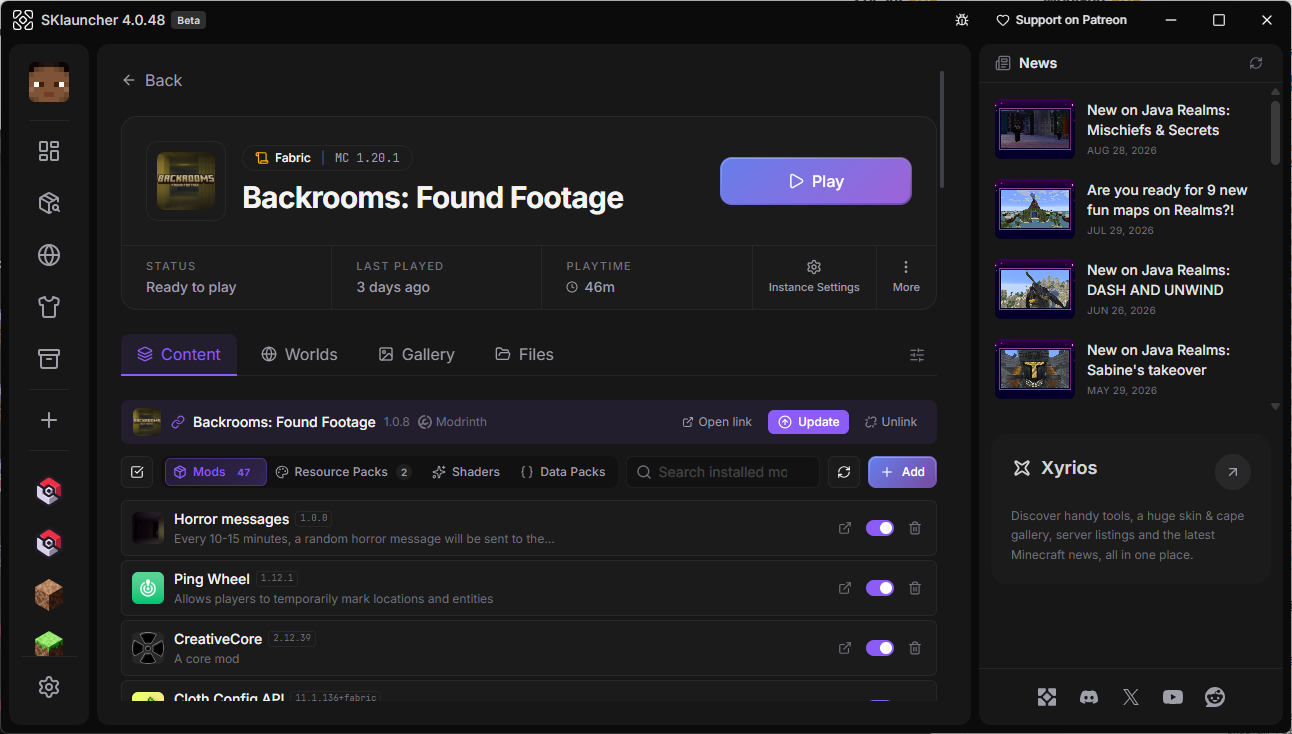 Click Play
 - 6
Connect to your server
In game, open Multiplayer → Add Server and paste the address:port from the server's Manage page.
Frequently Asked Questions
Common questions about installing and connecting to a modpack server
Why can't I connect with regular Minecraft?
A modpack server runs extra mods your regular game doesn't have installed. You need a launcher like SKLauncher that can install those exact mods as one pack, in the exact version your server is running.
Where do I find my server's modpack name and version?
Open your server's Manage page in the Mobland dashboard — the modpack name and version are listed there. Always match those exact values, not the pack's latest release.
Do I have to use SKLauncher specifically?
Any launcher that can install a specific historical version of a Modrinth-hosted pack works. This guide uses SKLauncher 4.0 because it's free and its Content Hub makes per-version installs simple — see our launcher comparison if you'd rather use something else.
I clicked Install and it still won't connect — why?
The big Install button on a pack's page always grabs the newest version. Go back to the pack's Versions tab and download the specific version shown on your server's Manage page instead.
Does this work for Bedrock Edition?
No — modpacks and Java launchers like SKLauncher are a Java Edition feature. Create a Java Edition server to run a modpack.
Prefer a different launcher?
SKLauncher isn't the only option — see how it compares to TLauncher and Phoenix Client for installing mods and modpacks.
Compare Minecraft launchers →Ready to Run Your Modpack Server?
Create a free Mobland server, pick a curated Fabric modpack (or upload your own mods), and connect with the exact version your friends need.
Get Started Free